
Learn why it’s important to log every parcel accurately
Logging every parcel accurately
Logging each parcel correctly ensures each item is tracked and prevents lost/misdelivered specimens. Failure to log parcels may result in a fine.
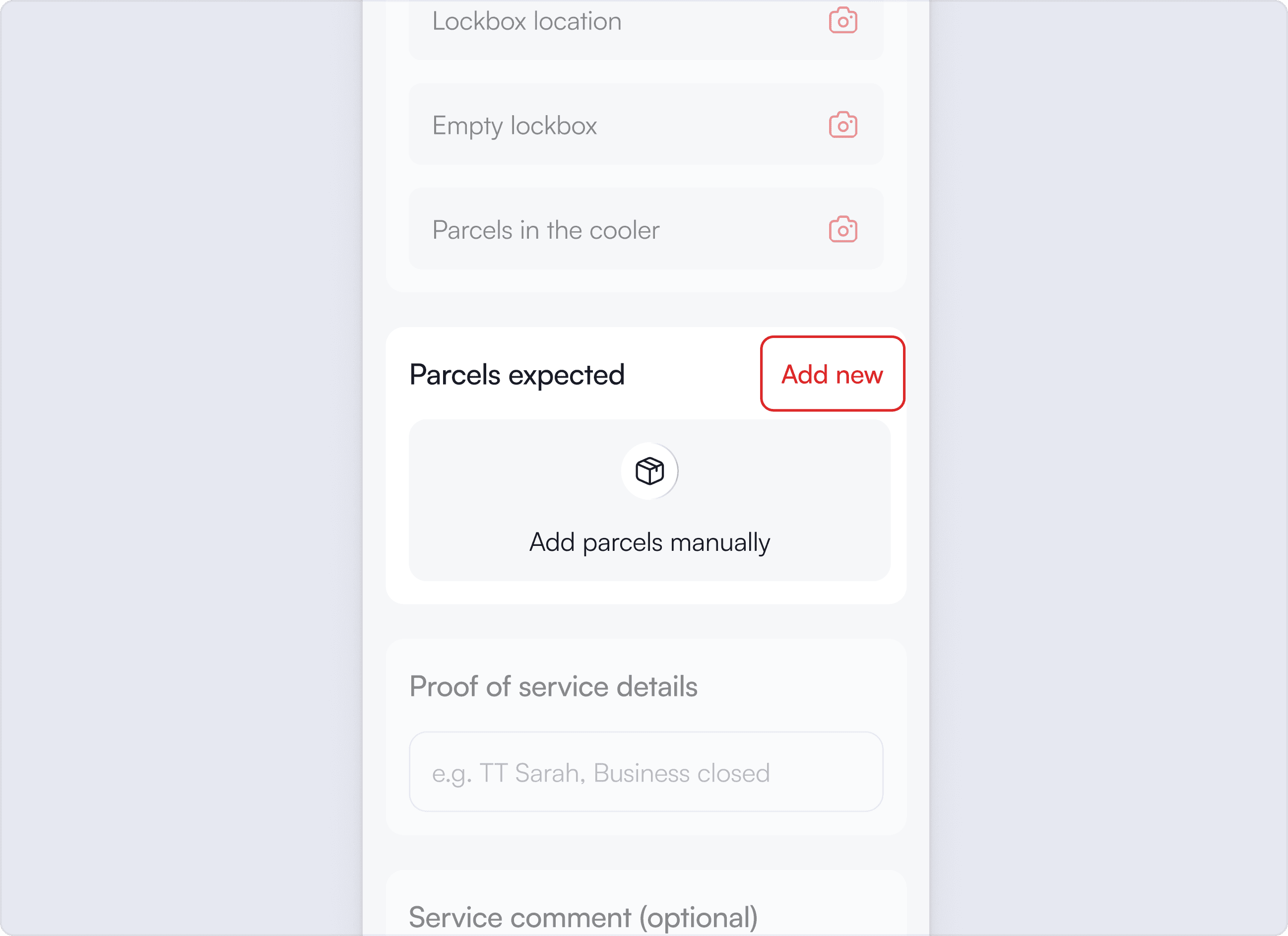
Step 1
In the pickup parcels section tap add new and select the type of parcel from the dropdown
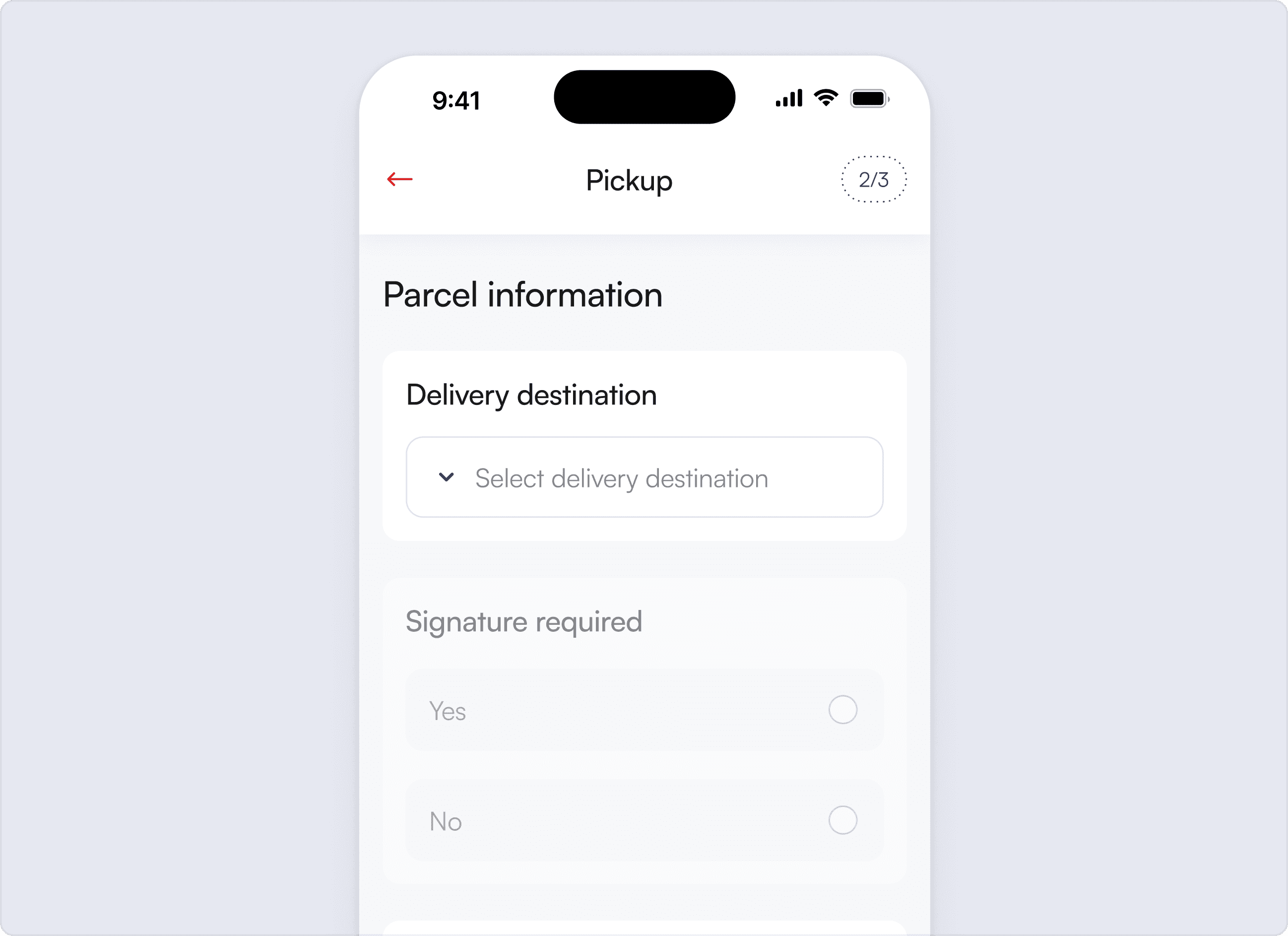
Step 2
Tap the dropdown and select the delivery destination (if needed)
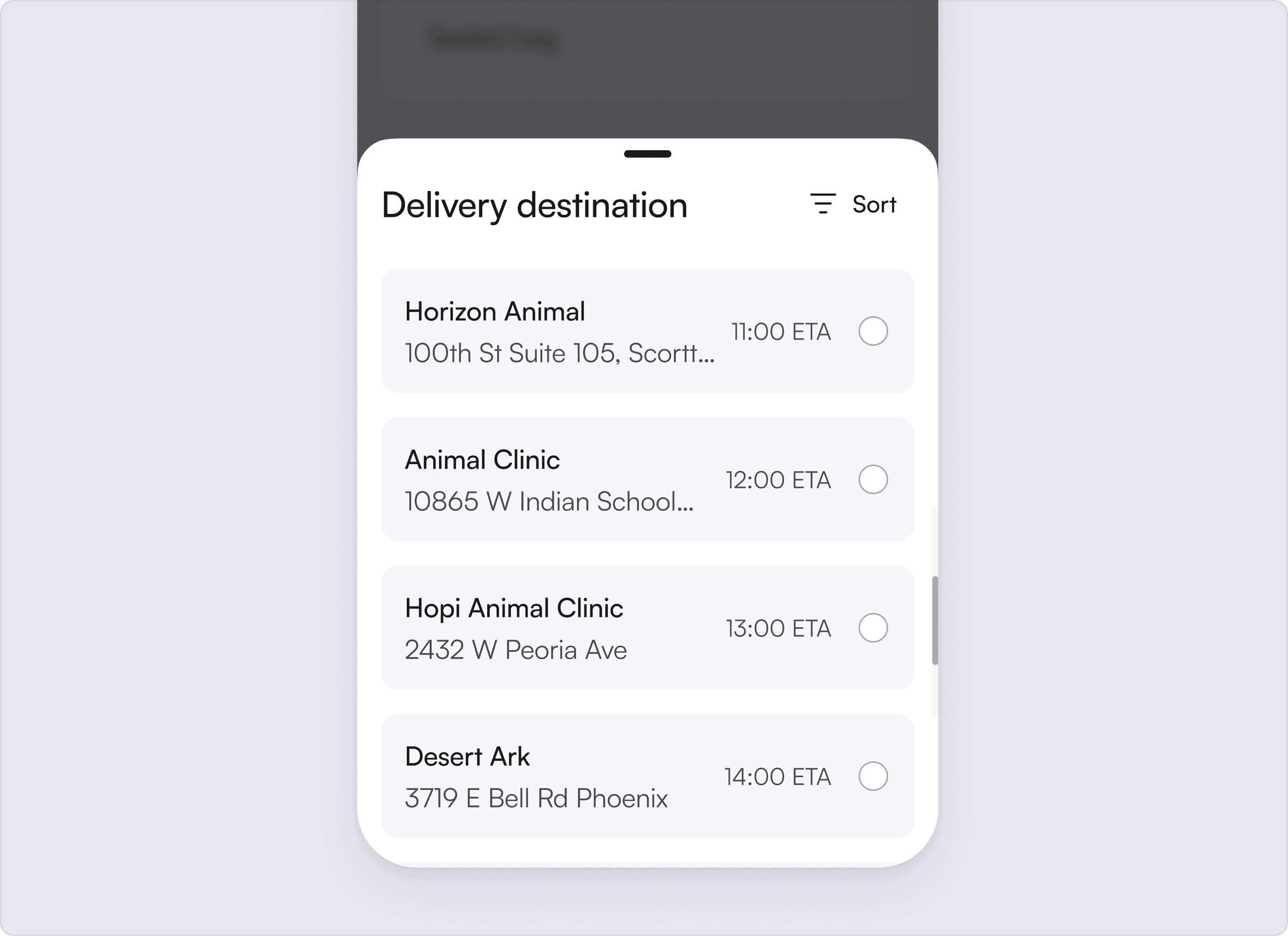
Step 3
The delivery destination is defaulted to the last, if that is not the delivery destination you will need to change it
Step 4
Add a comment if necessary and tap continue.
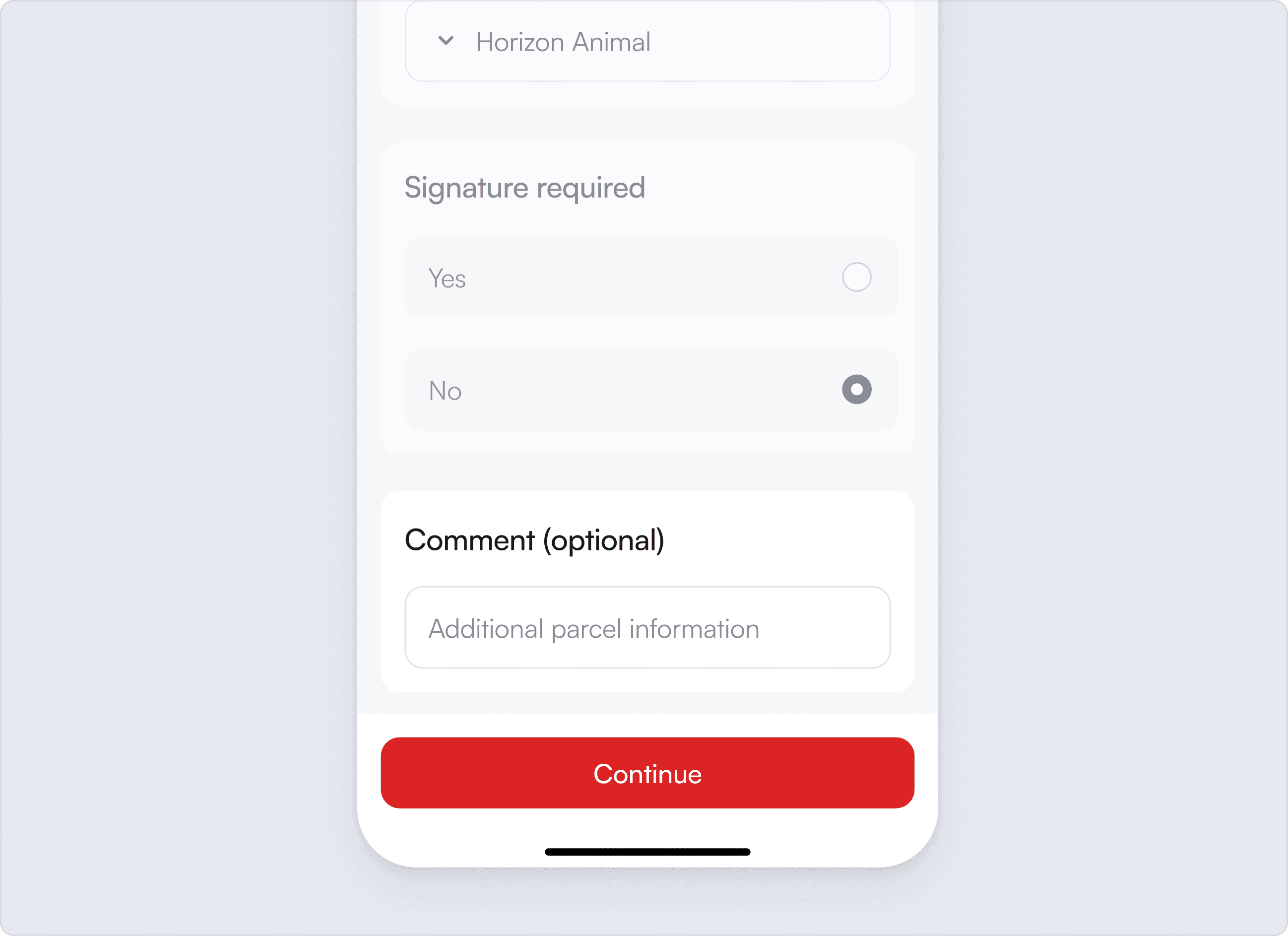
Step 5
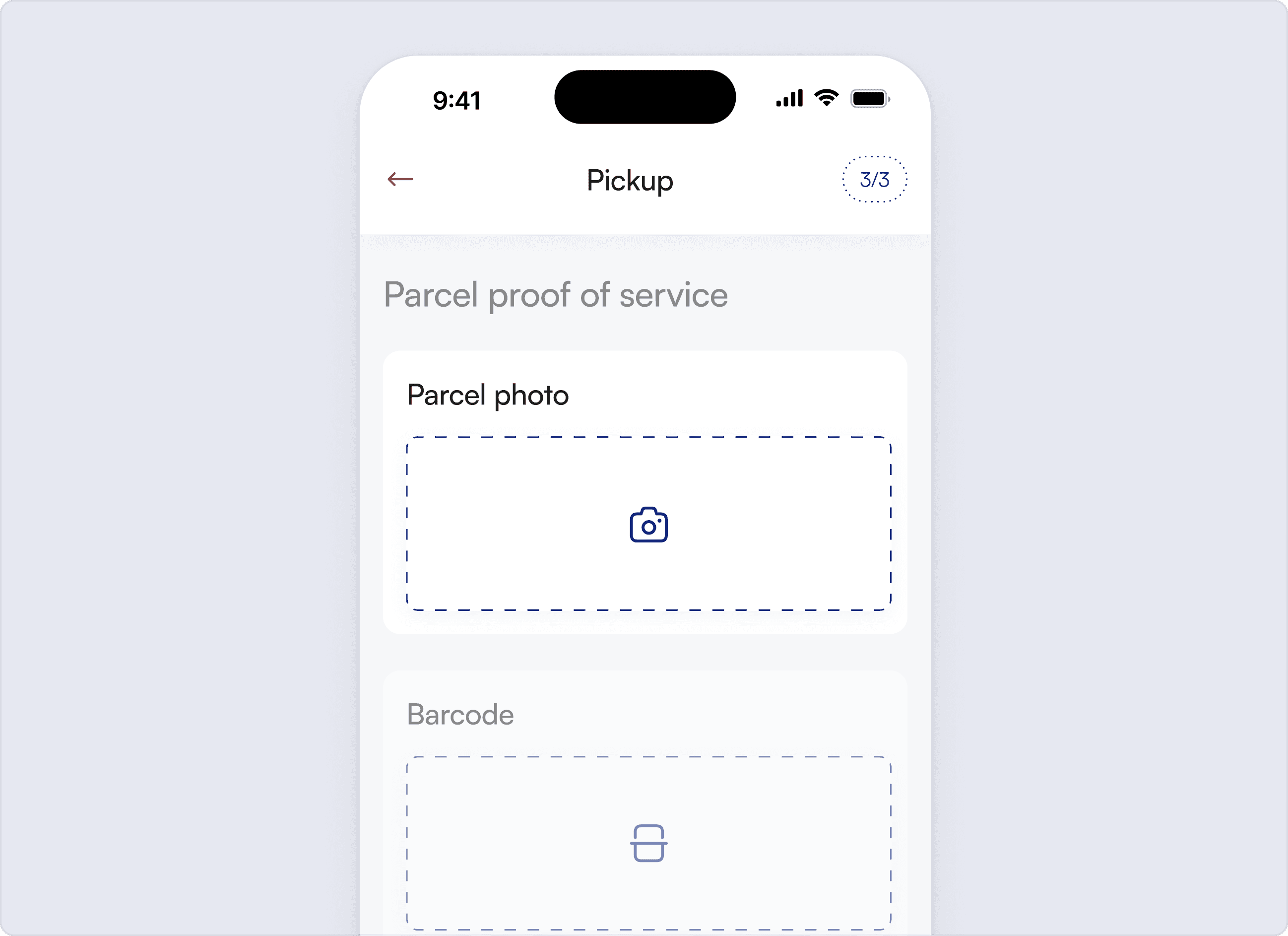
Tap the camera in the parcel photo section to take a photo of the parcel.
Step 6
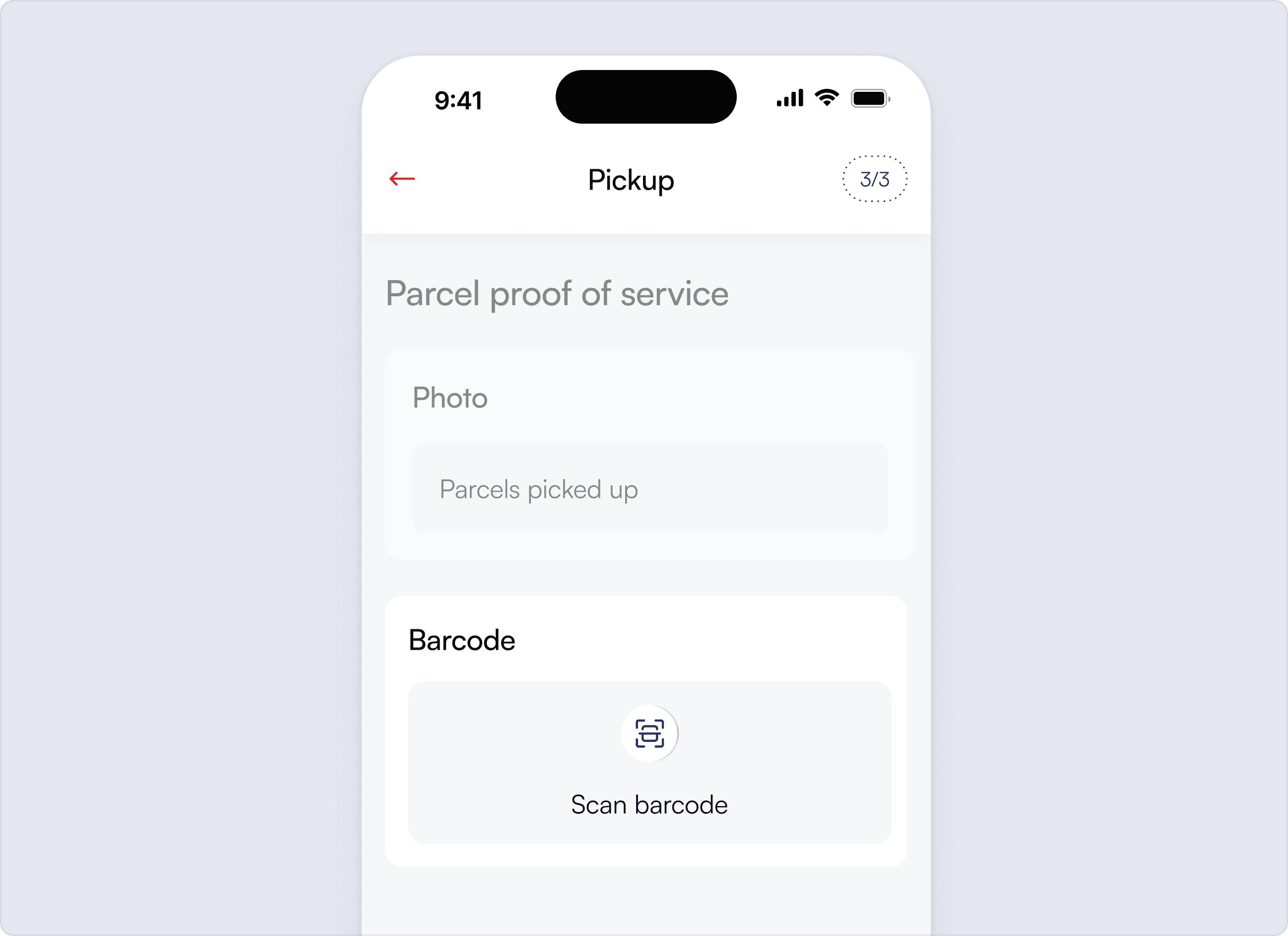
If there is a barcode on the parcel scan the barcode and tap save parcel.
Related Articles

Stops
Learn why you should follow the sequence shown
Navigation
How following navigation helps you stay on route
Stops notes
Make sure to read the stop notes

Mark arrival
How to mark your arrival at a stop

Services
How to complete all the services at a stop

Work order parcels
Learn how to confirm predefined parcels

Managing parcels
How to correct or remove an incorrectly added parcel
Samples not out (SNO)
Learn what to do when there are no parcels to pickup

Proof of service photos
Why taking proof of service photos is important

Proof of service notes
Learn how to record who you spoke to at each stop